Draft review workflow tutorial
Tutorial/demo only
This exercise lets one learner use several role tabs to practise handoffs. In a real installation, separate people use personal accounts for editing, review, and approval. Use only synthetic training data.
This tutorial follows an intentionally incorrect parcel-name proposal through rejection, correction, independent review, and final approval. It also shows that rejection remains in the audit history rather than being overwritten.
Learning outcome
After this exercise, you can:
- submit a parcel draft for independent review;
- reject a proposal with a clear reason;
- create a separate corrected draft from the unchanged official parcel;
- complete review and final approval with exact roles; and
- distinguish official parcel history from draft workflow history.
Allow approximately 15–20 minutes.
Before you start
You need the Editor, Reviewer, Approver, and Viewer role tabs opened during the LandWeave learner tutorial, or a fresh set supplied by the trainer. See Tutorial access. Keep each role in its own tab.
The training demo must be in its clean tutorial state. This exercise uses
SYN-005; your trainer may assign another parcel if that parcel already has an
active or completed exercise draft.
1. Create an intentionally incorrect proposal
In the Editor tab, open the parcel list and then open SYN-005. Confirm
that Effective Role is Editor and note the current official parcel name.
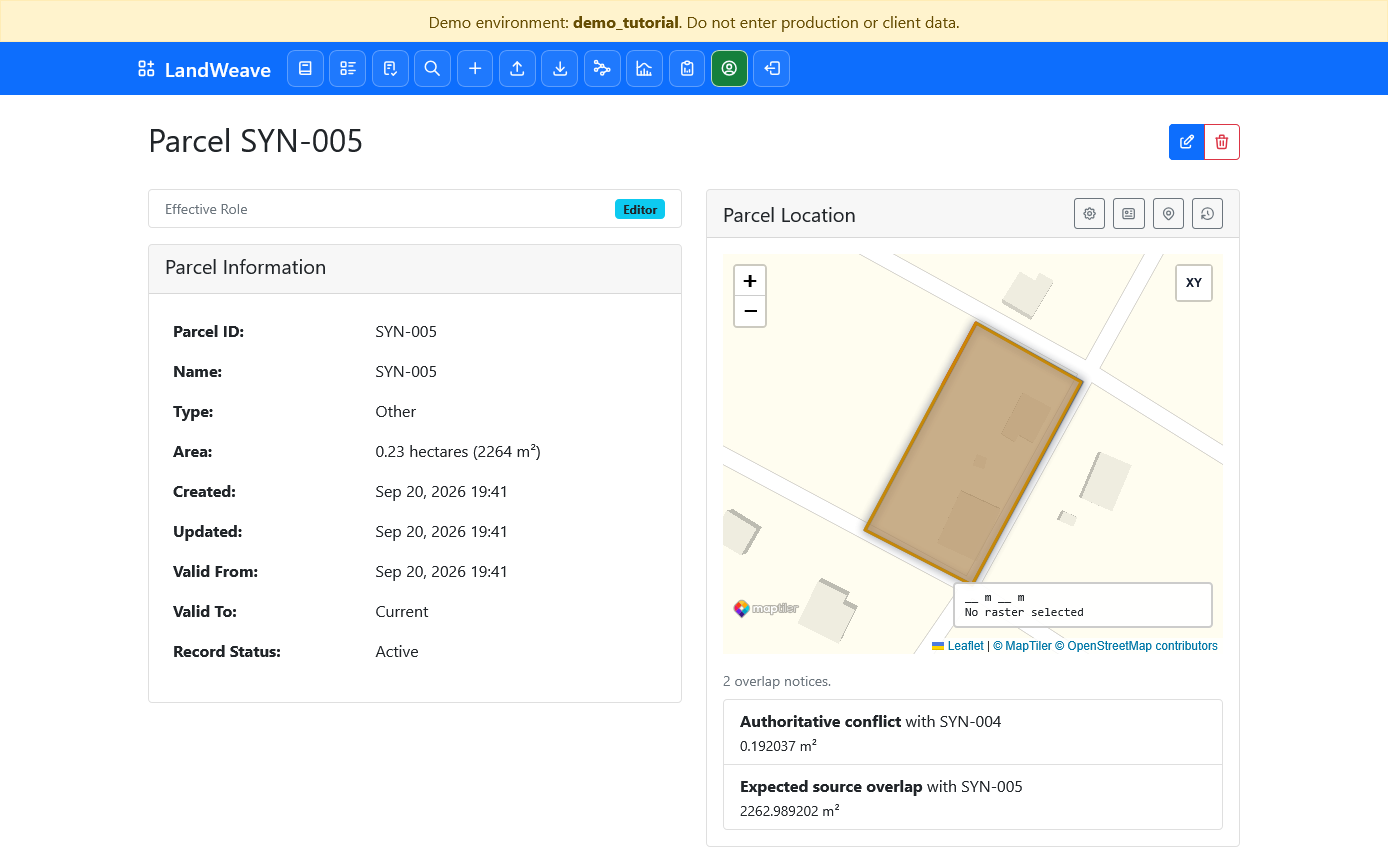
Select Edit Draft. Change only the name to:
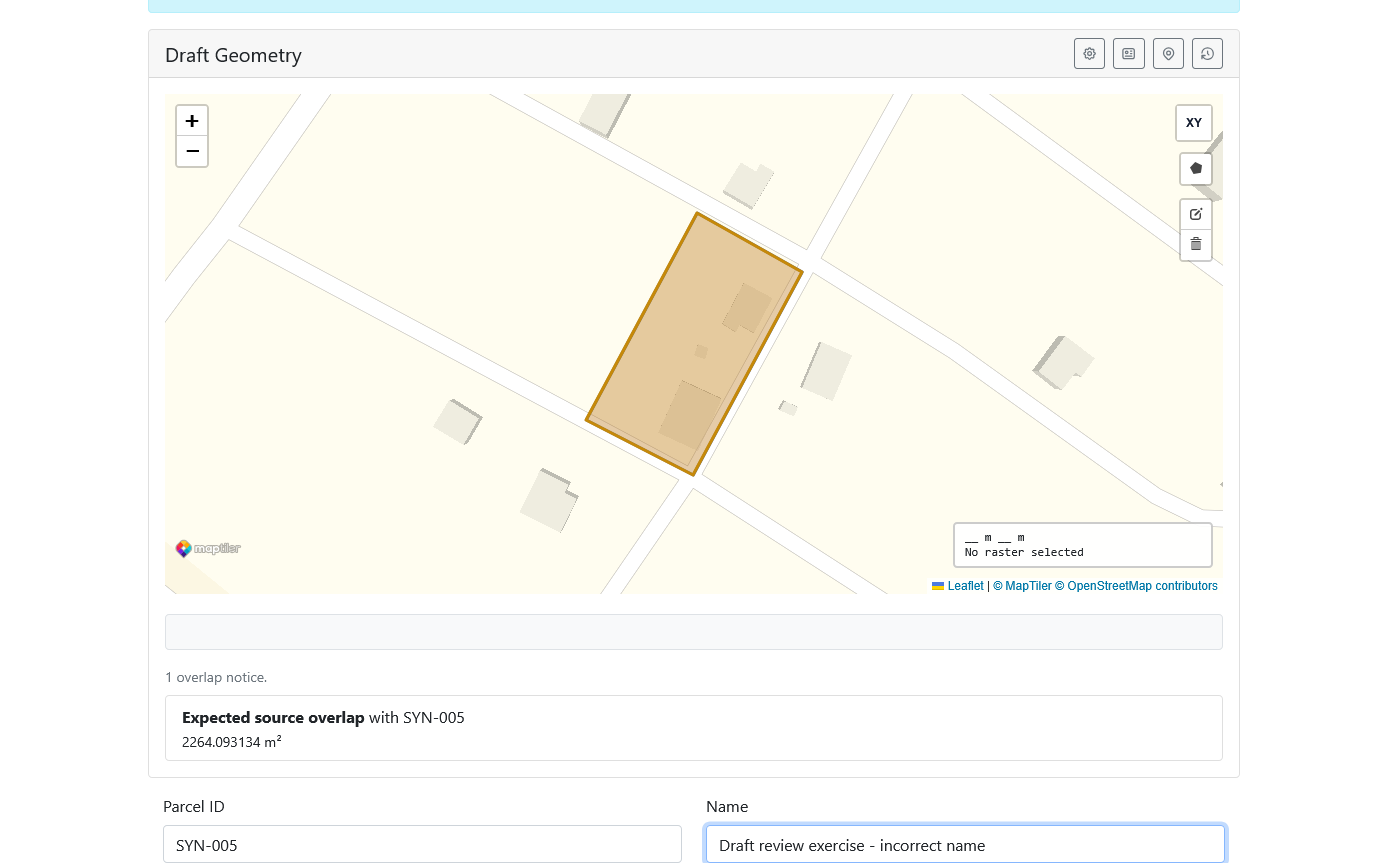
Draft review exercise - incorrect name
Do not move or redraw the boundary. Select Save Draft, open the current draft, and confirm that its state is Draft. The official parcel is still unchanged.
2. Submit the draft
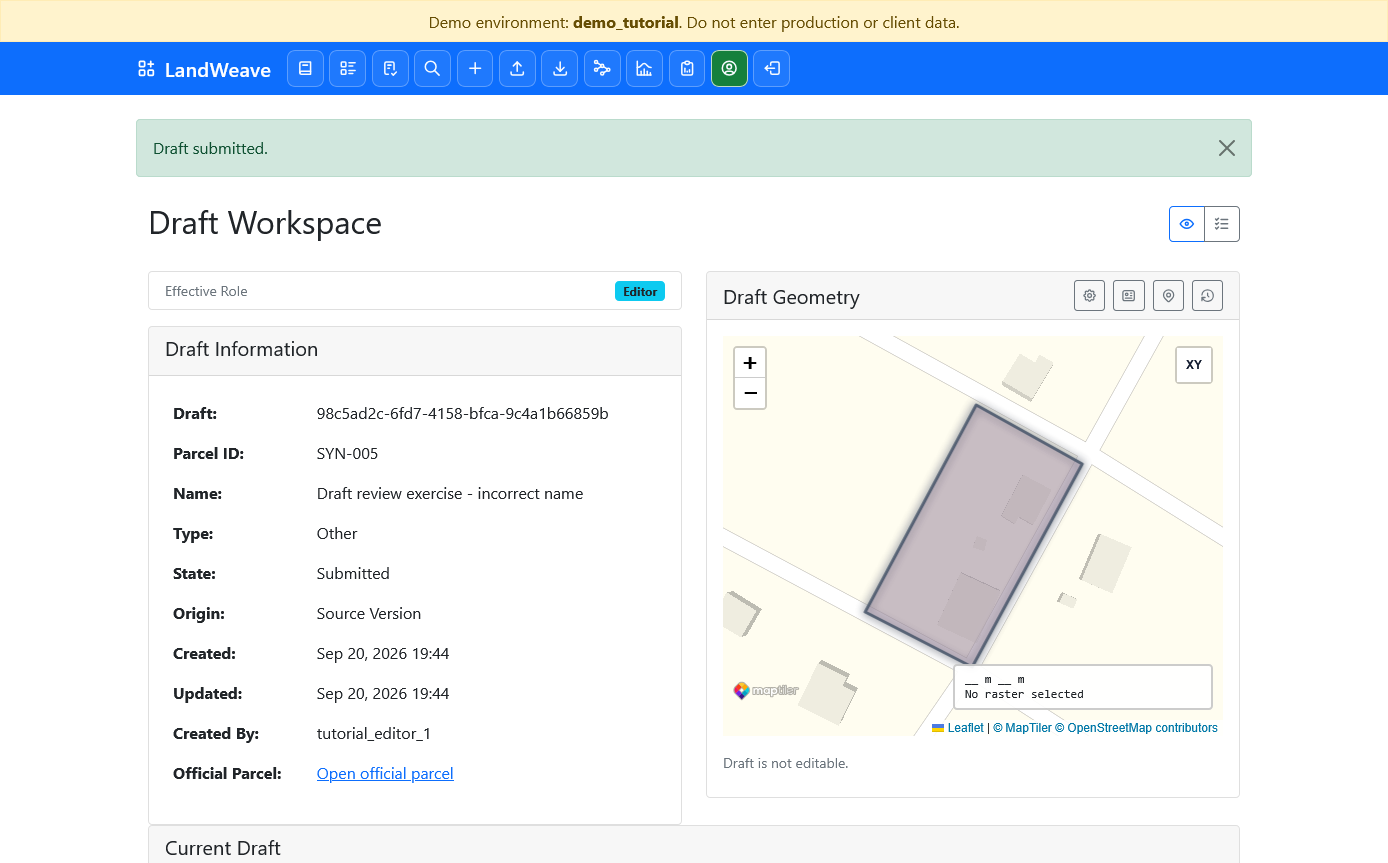
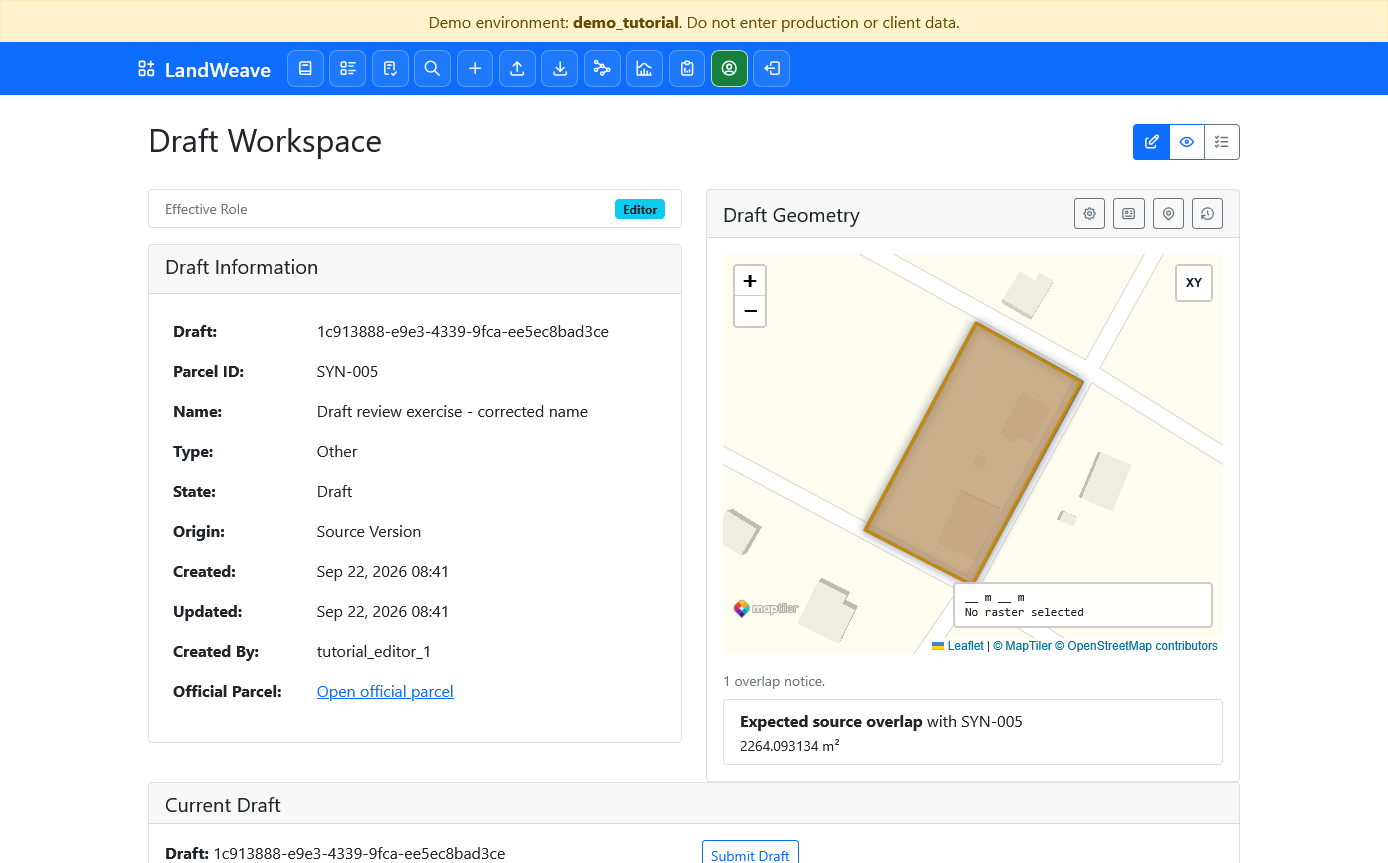
Inspect the proposed name and geometry. The expected source-overlap notice is normal for a draft derived from the current official parcel. Select Submit Draft and confirm.
The state becomes Submitted. Reload the page and confirm that the state and proposed name remain visible.
3. Reject it as Reviewer
Move to the Reviewer tab and open Workflow Tasks. Find Draft review exercise - incorrect name, confirm that its state is Submitted, and open the task.
Check the proposal, enter this rejection reason, and select Reject Draft:
Correct the parcel name before approval
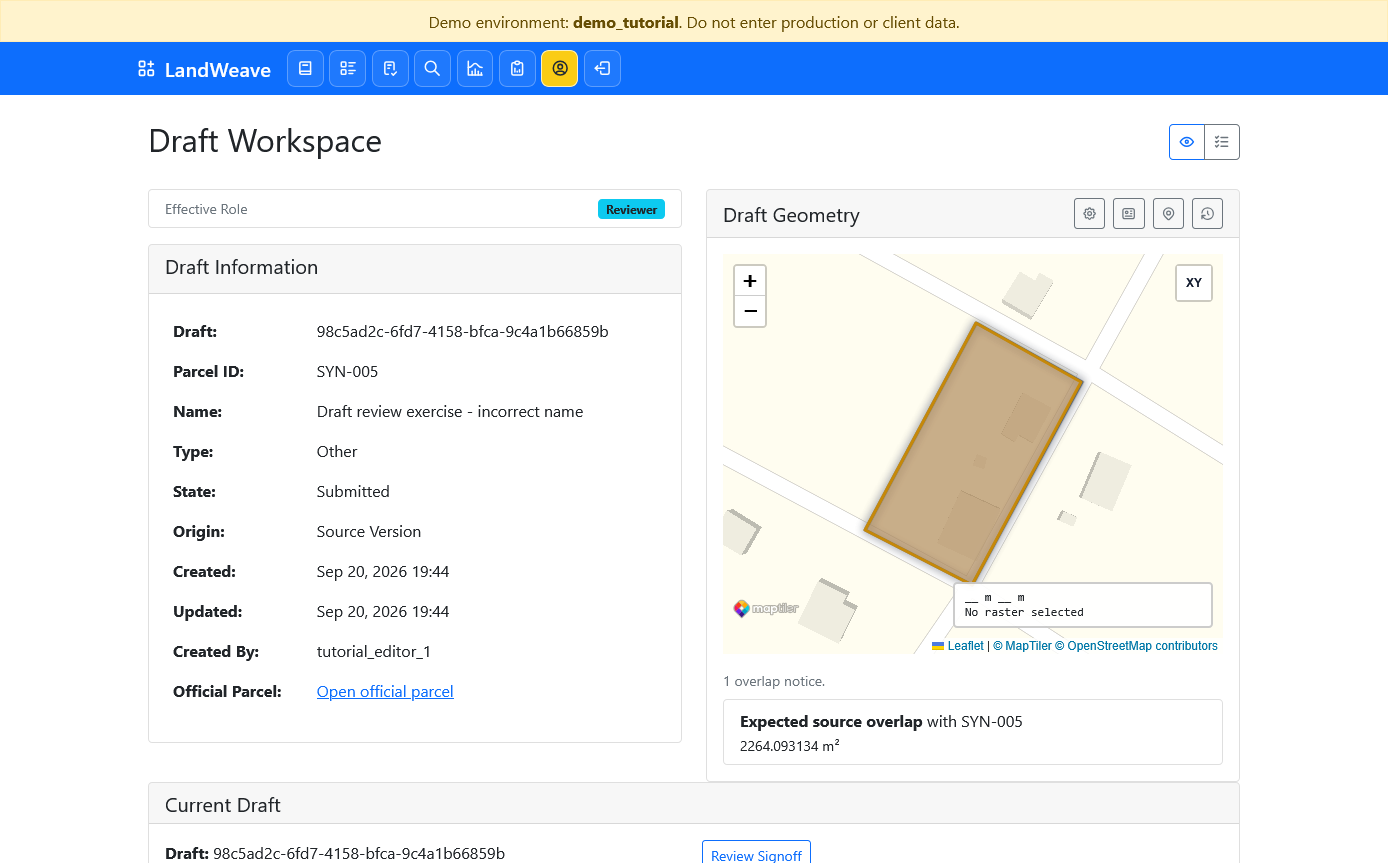
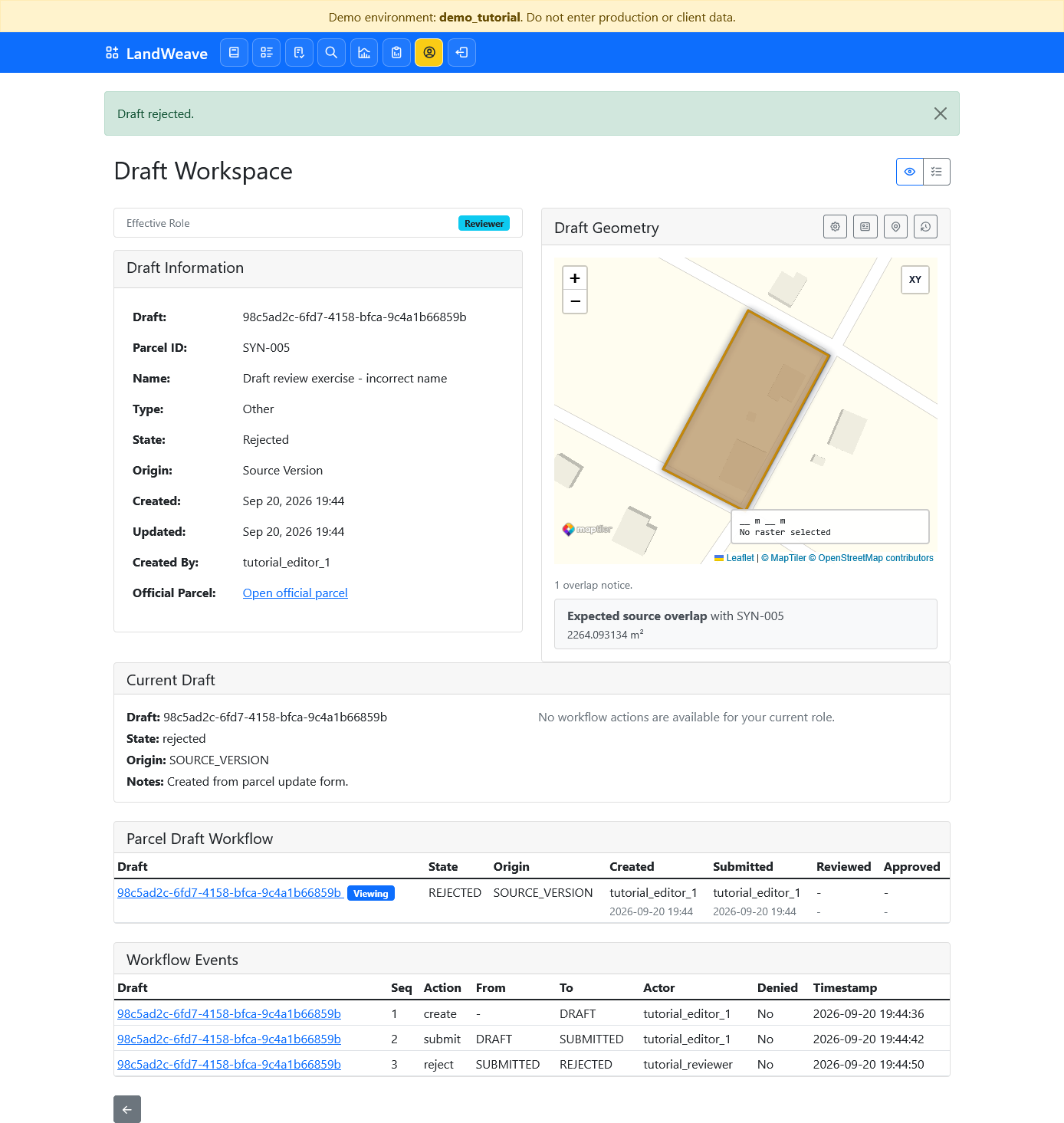
Confirm the action. The state becomes Rejected, and the workflow history records the Reviewer and reason. A rejected draft is terminal: it cannot be edited or resubmitted.
4. Create a corrected draft
Return to the Editor tab and reload the rejected draft. Select Open Official Parcel. The official parcel still has its original name because the rejected proposal never became official.
Select Edit Draft to create a new draft. Change only the name to:
Draft review exercise - corrected name
Save and open the new draft. Confirm that it has a different draft identifier from the rejected draft and that the rejected draft remains visible in the parcel history. Select Submit Draft to send the corrected draft to review. At this point, the Editor may instead select Update Draft to revise it or Cancel Draft to withdraw it. This tutorial does not follow those alternative actions further.
5. Review the correction
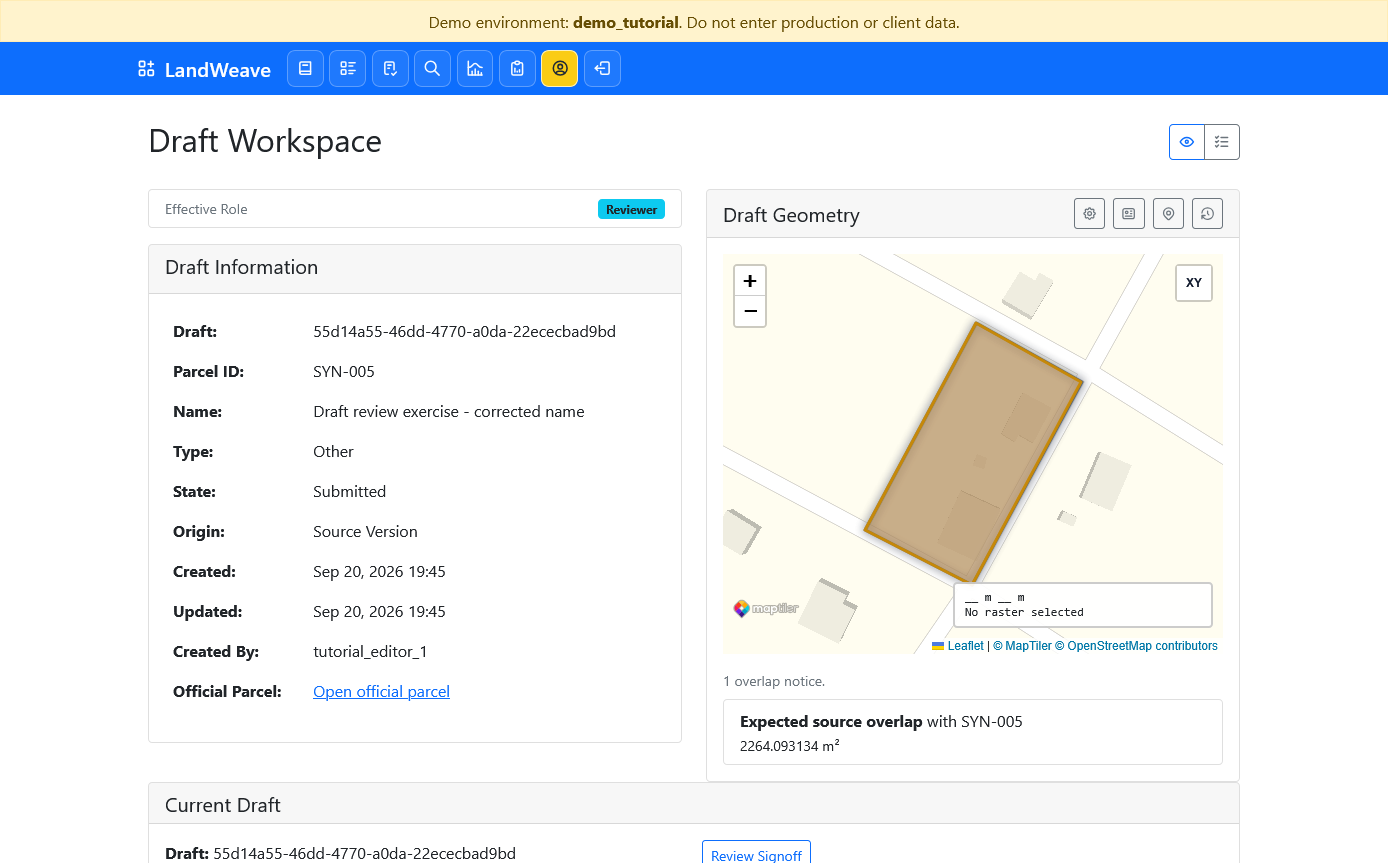
In the Reviewer tab, return to Workflow Tasks and open the corrected submitted draft. Compare the corrected name with the recorded rejection reason.
Select Review Signoff and confirm. The state becomes Reviewed. Review signoff is not final approval and does not yet change the official parcel.
6. Give final approval
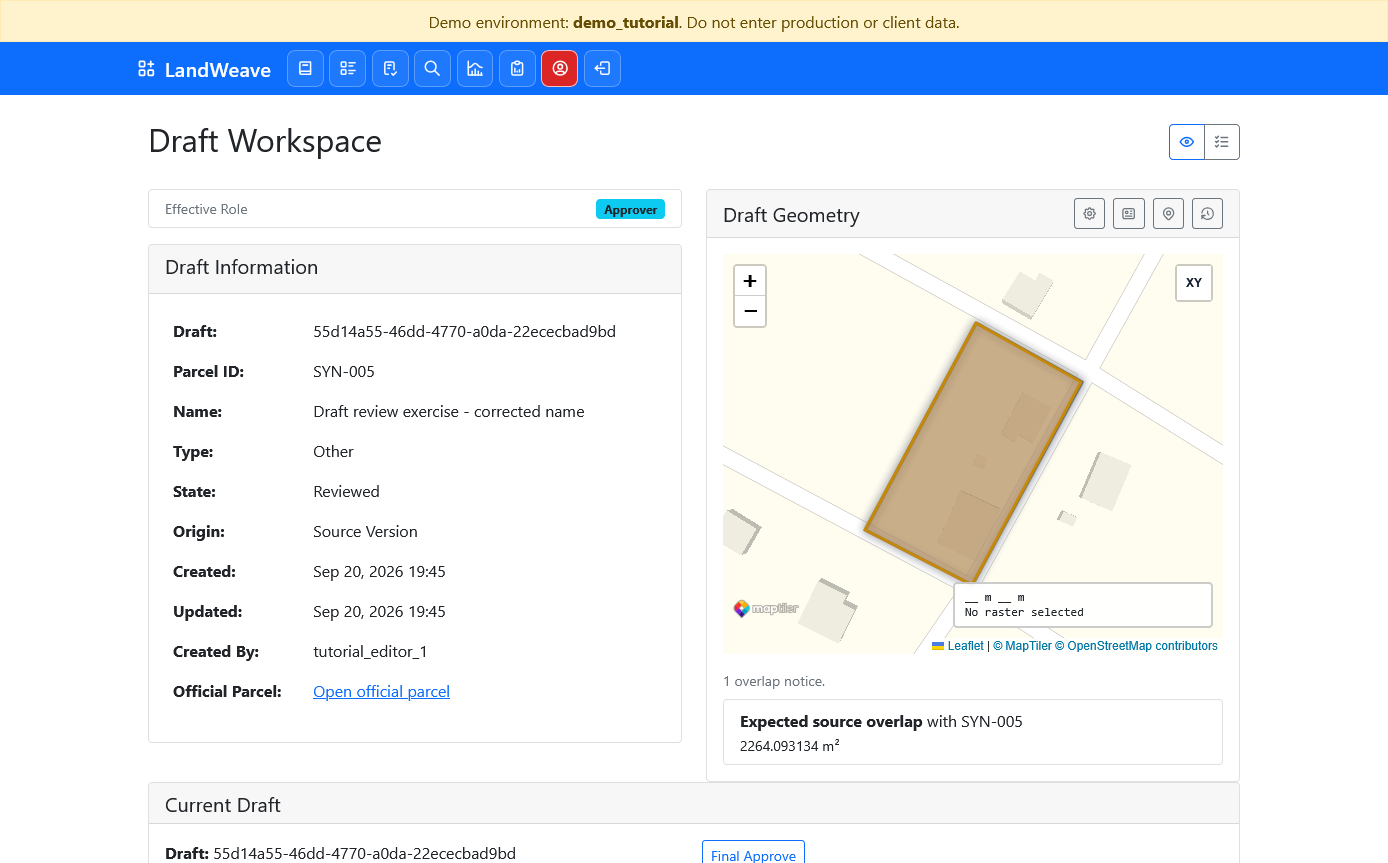
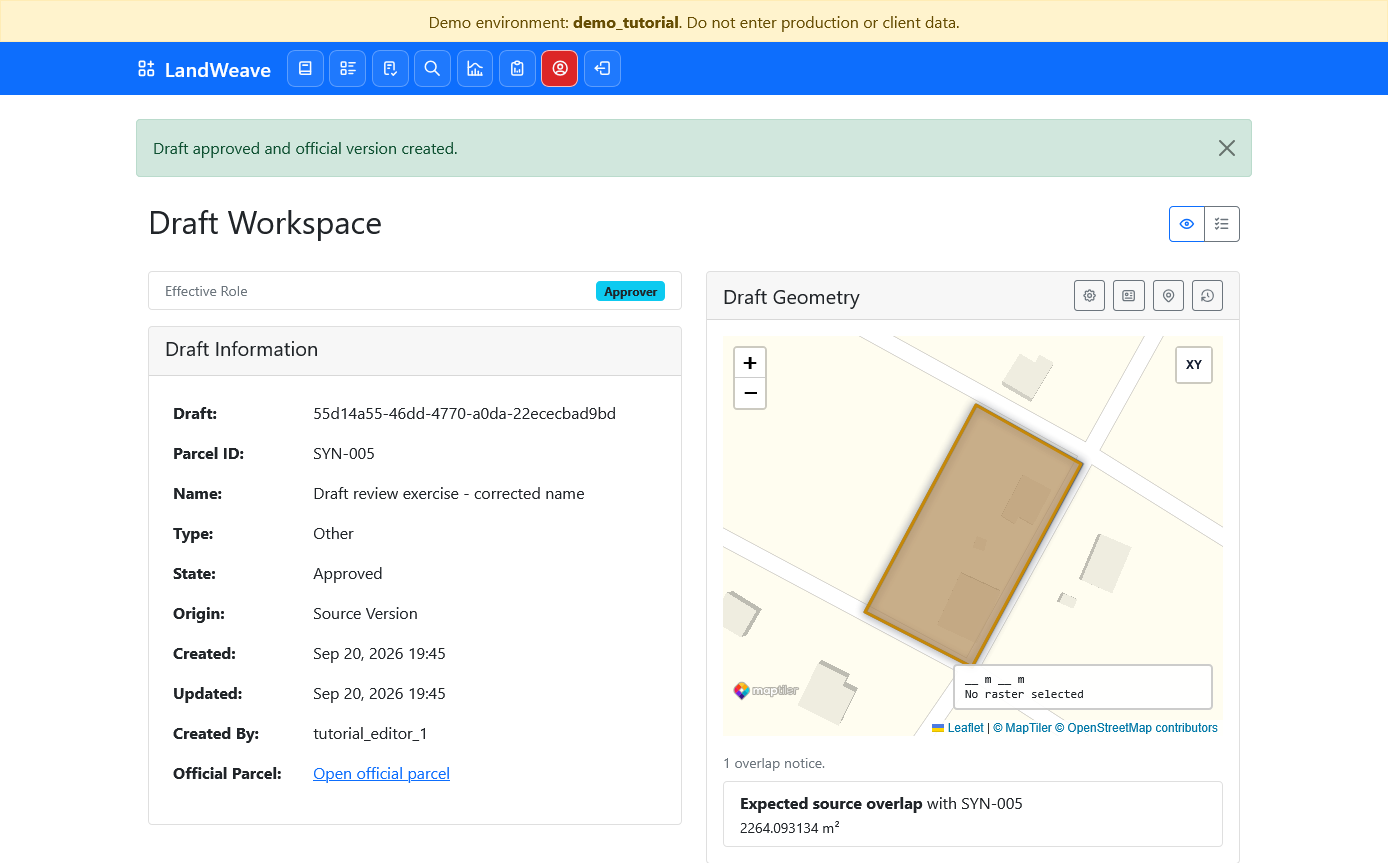
Move to the Approver tab and open the reviewed task. Confirm that Effective Role is Approver, the state is Reviewed, and the corrected name is shown.
Select Final Approve and confirm. The state becomes Approved, and the page links to the resulting official parcel version.
7. Verify the audit trail as Viewer
In the Viewer tab, open the current SYN-005 parcel and reload the page.
Confirm all of the following:
- the corrected name is now official;
- the previous official version remains in parcel history;
- the rejected draft and its rejection reason remain visible;
- the approved corrected draft is a separate record; and
- its ordered events identify the Editor, Reviewer, and Approver stages.
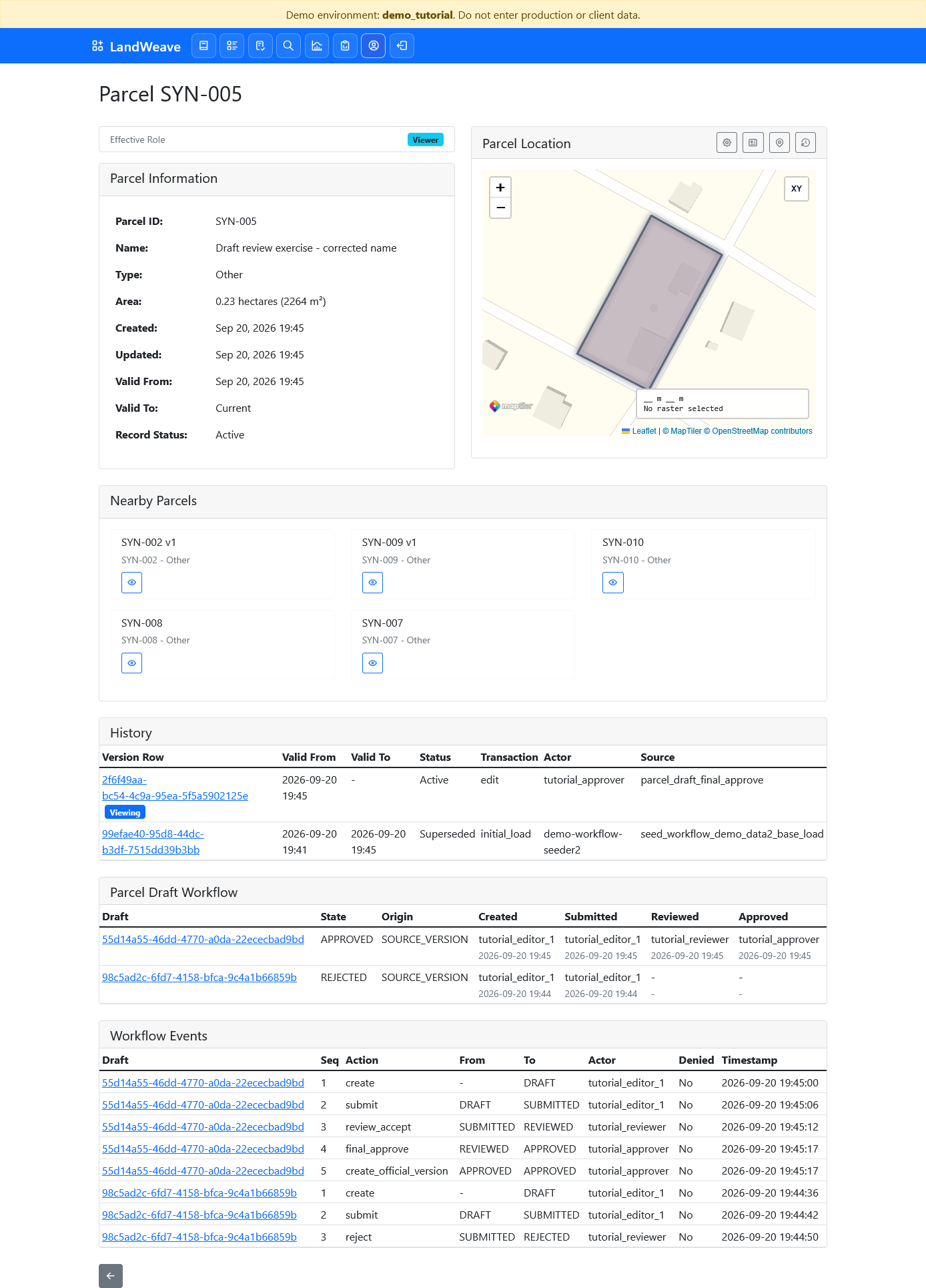
The exercise is complete. Rejection did not modify the official parcel or erase the failed proposal. Approval created a new official version from a distinct, auditable corrected draft.
If something does not work
- No Edit Draft action: the parcel may already have an active draft. Ask the trainer for a clean parcel or a reset demo.
- No task in the queue: reload the correct role tab and check the parcel name and current workflow state.
- Action is unavailable: verify the exact role. Reviewer and Approver are separate authorities; one does not substitute for the other.
- Correction opens the rejected draft: return through Open Official Parcel, then create a new draft from the official parcel.
For the complete state and authorization rules, see ParcelDraft Workflow.