LandWeave learner tutorial
Tutorial/demo only
This tutorial lets one learner view several roles so that the complete workflow is easy to understand. This is only for a demonstration. In a real LandWeave installation, each person has one personal account and one assigned role. One person does not act as Editor, Reviewer, and Approver for the same parcel change.
This short exercise follows one synthetic parcel change from inspection to final approval. Do not enter real parcel, client, personal, or production data. The demo may be reset or deleted without notice.
Before you start
You need:
- Mozilla Firefox for desktop;
- the HTTPS demo address supplied by the trainer; and
- a current ticket issued by the demo administrator.
Firefox is required only for the tutorial launcher, which keeps several demo roles separate. The normal LandWeave application is not Firefox-only and can be used with other supported browsers.
1. Open the demo
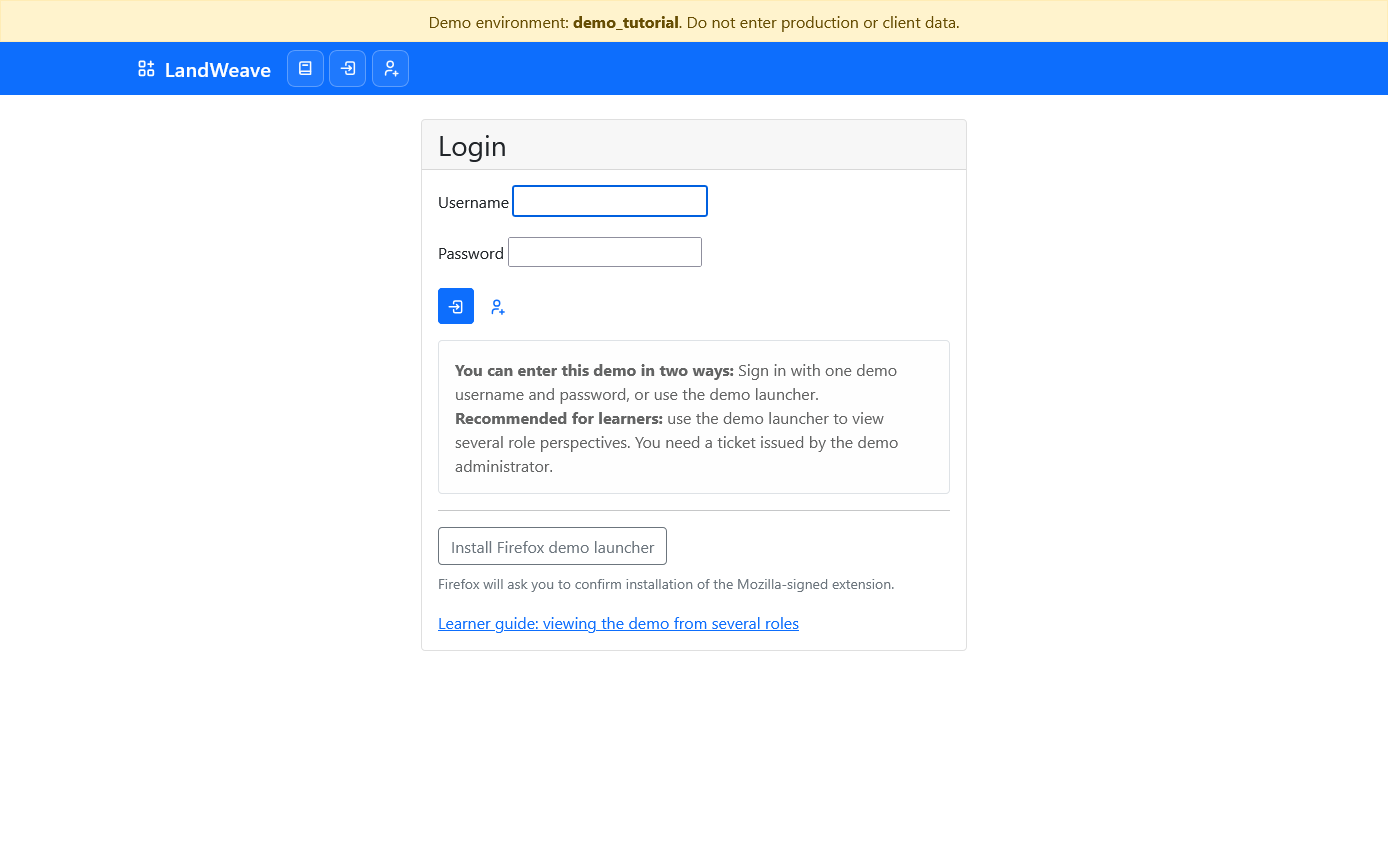
Open the demo address in Firefox. The yellow banner confirms that this is a demo. Do not enter production or client data.
You may sign in with one username and password, but learners should normally use Install Firefox demo launcher. The launcher needs an administrator-issued ticket.
2. Install the launcher
Select Install Firefox demo launcher.
Firefox first asks whether the demo site may install an add-on. Confirm only if the address is the demo supplied by your trainer. Firefox then names the LandWeave Demo Launcher and asks you to add it. Select Add.
Firefox has verified the launcher. It is provided directly by this demo, so you will not find it by searching the Firefox Add-ons website.
3. Open the role tabs
Open LandWeave Demo Launcher from Firefox's extensions menu. Enter the exact HTTPS demo address and your ticket, including the hyphen, then select Launch. Treat the ticket like a temporary password: use only the ticket given to you, and do not share it with anyone else.
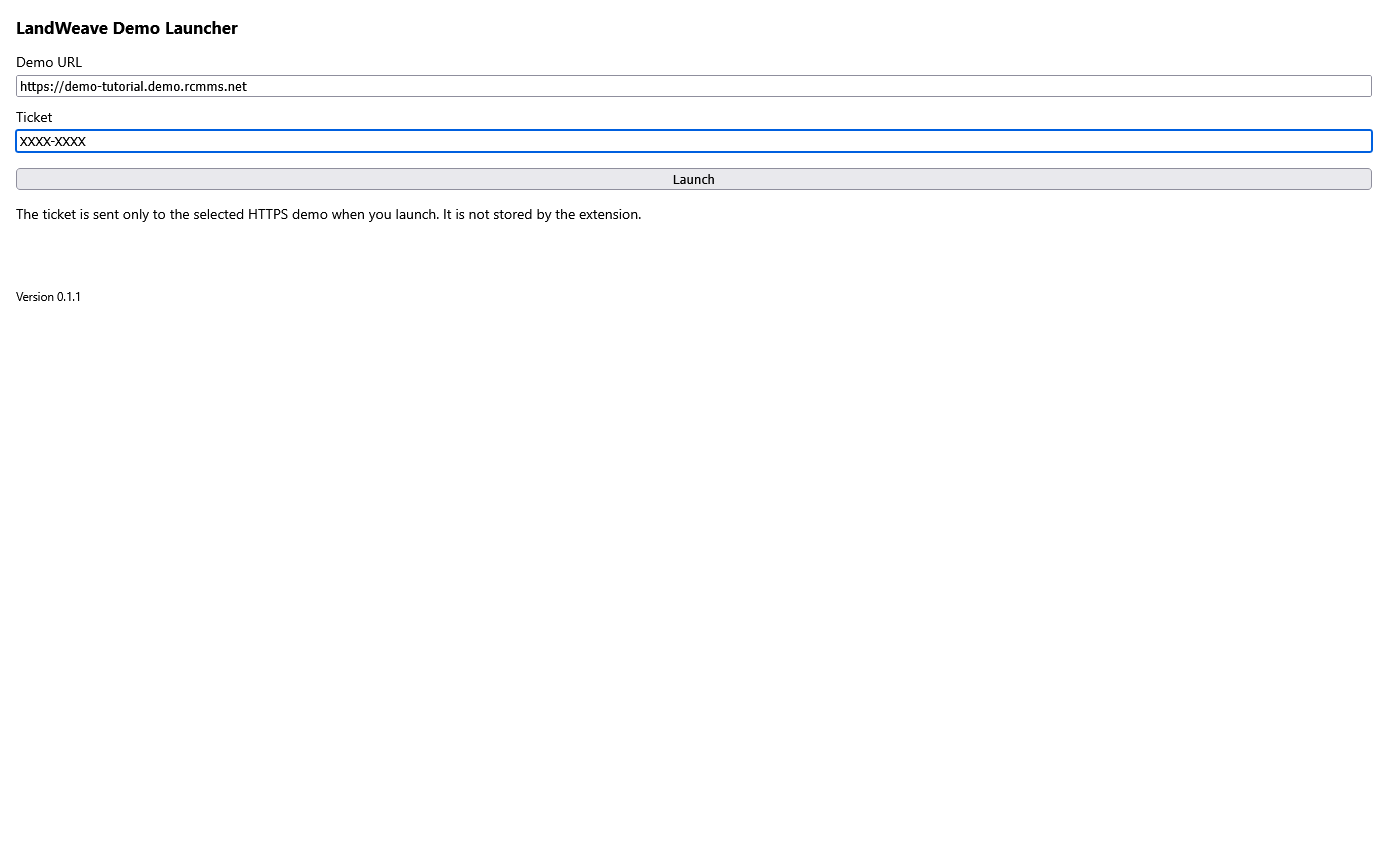
Firefox may ask whether the extension can access this demo. Approve only the demo address supplied by your trainer. Four tabs open with separate sessions:
- Viewer, blue profile icon;
- Editor, green profile icon;
- Reviewer, yellow profile icon; and
- Approver, red profile icon.
Keep these tabs separate. Signing out in one role tab should not sign out the others.
4. Begin as Viewer
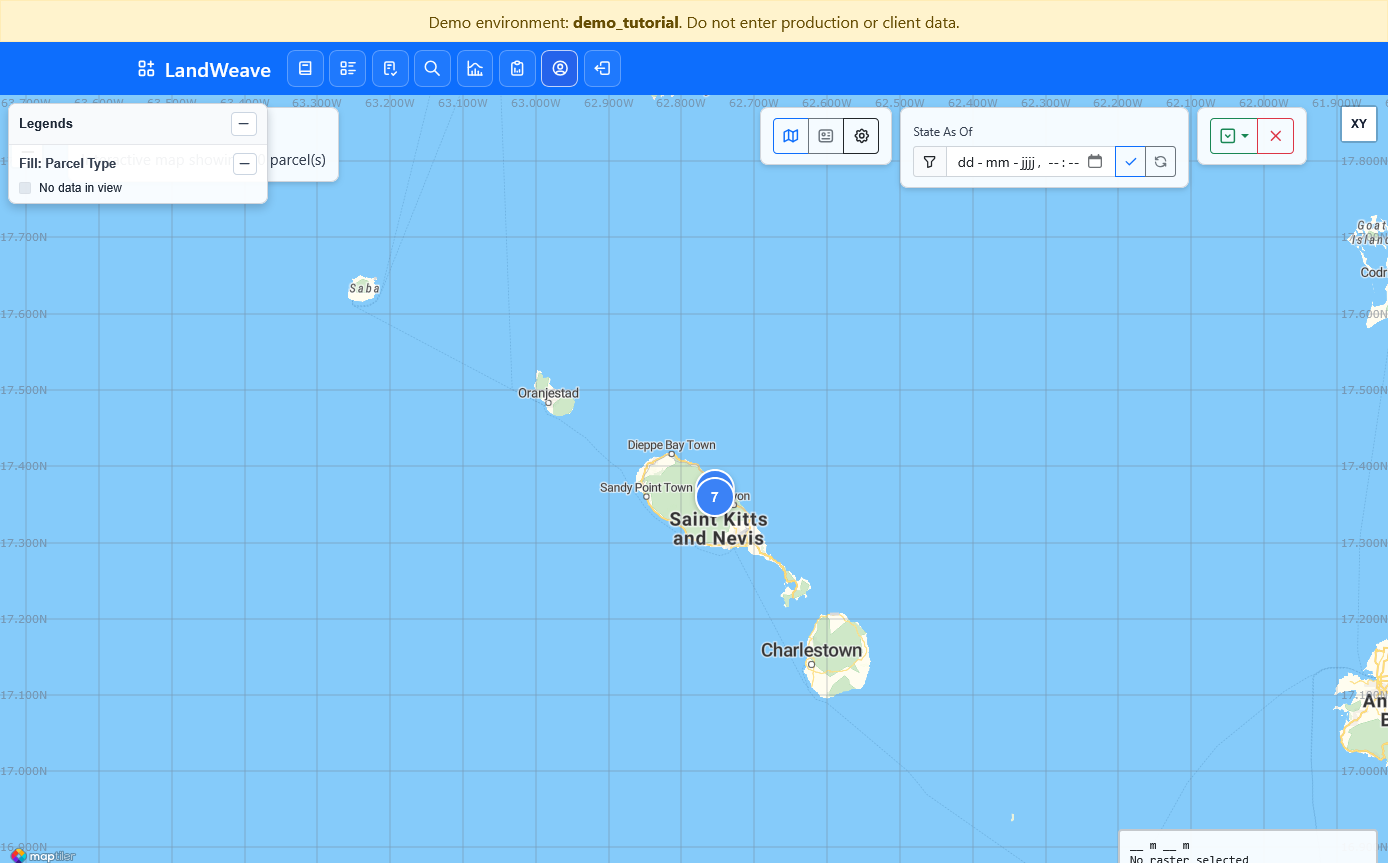
Start in the Viewer tab. The Viewer can inspect the map and official parcel information but cannot change it. Use the map or parcel list to become familiar with the synthetic dataset.
5. Choose a parcel as Editor
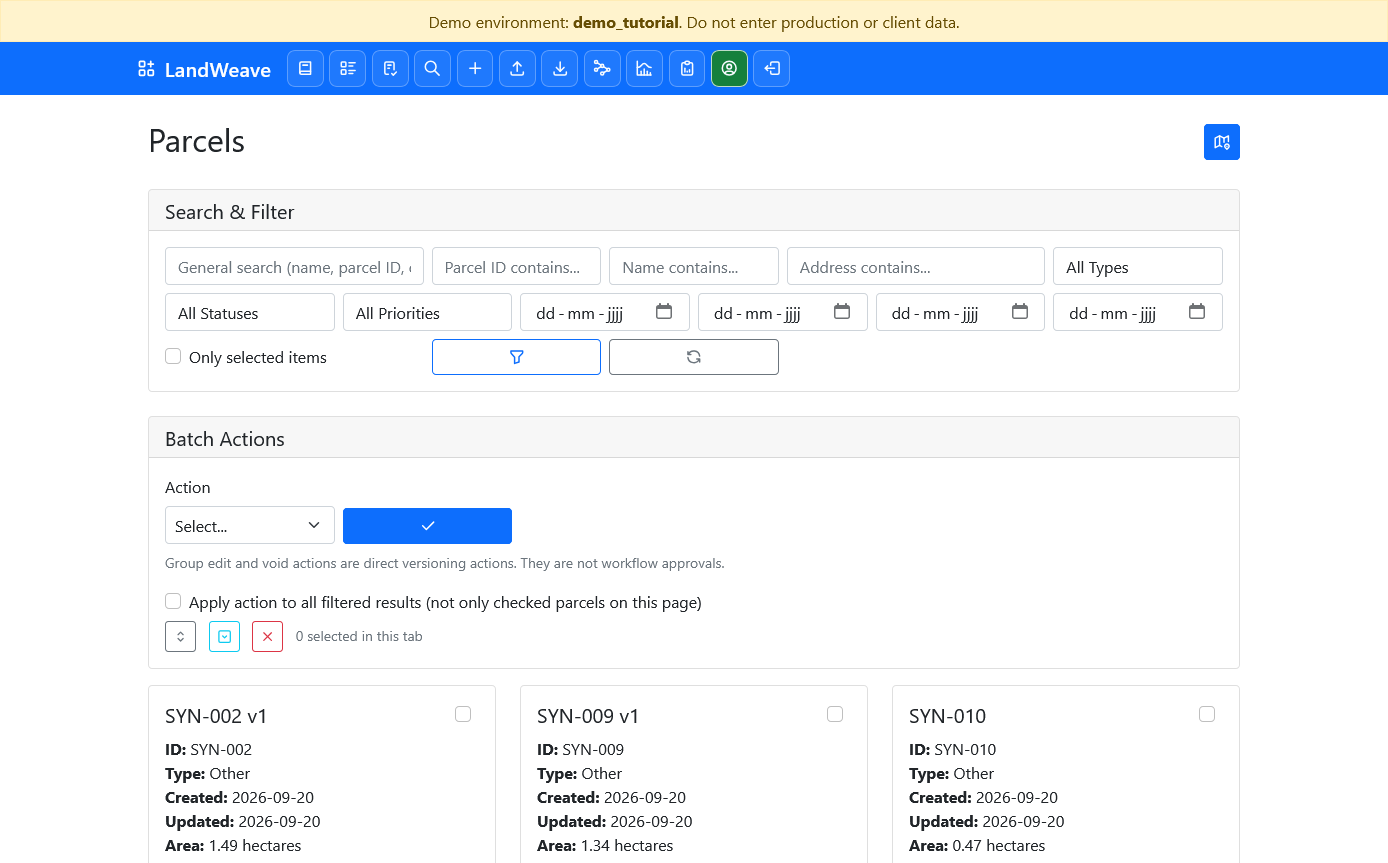
Move to the Editor tab and open the parcel list. Select a parcel assigned by
the trainer. This example uses SYN-004.
On the parcel page, check that Effective Role is Editor. Select the edit button in the upper-right corner to create or open its draft.
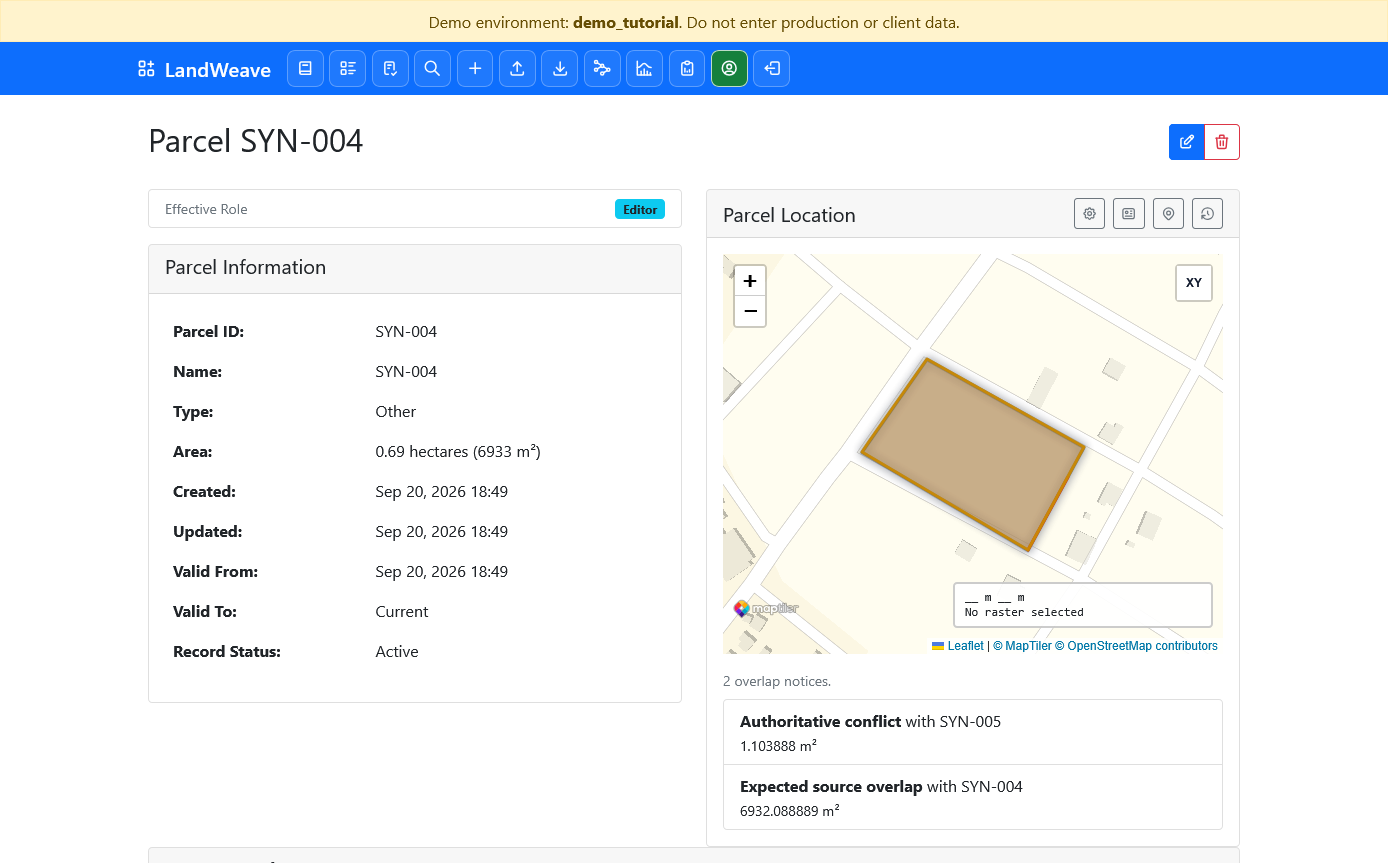
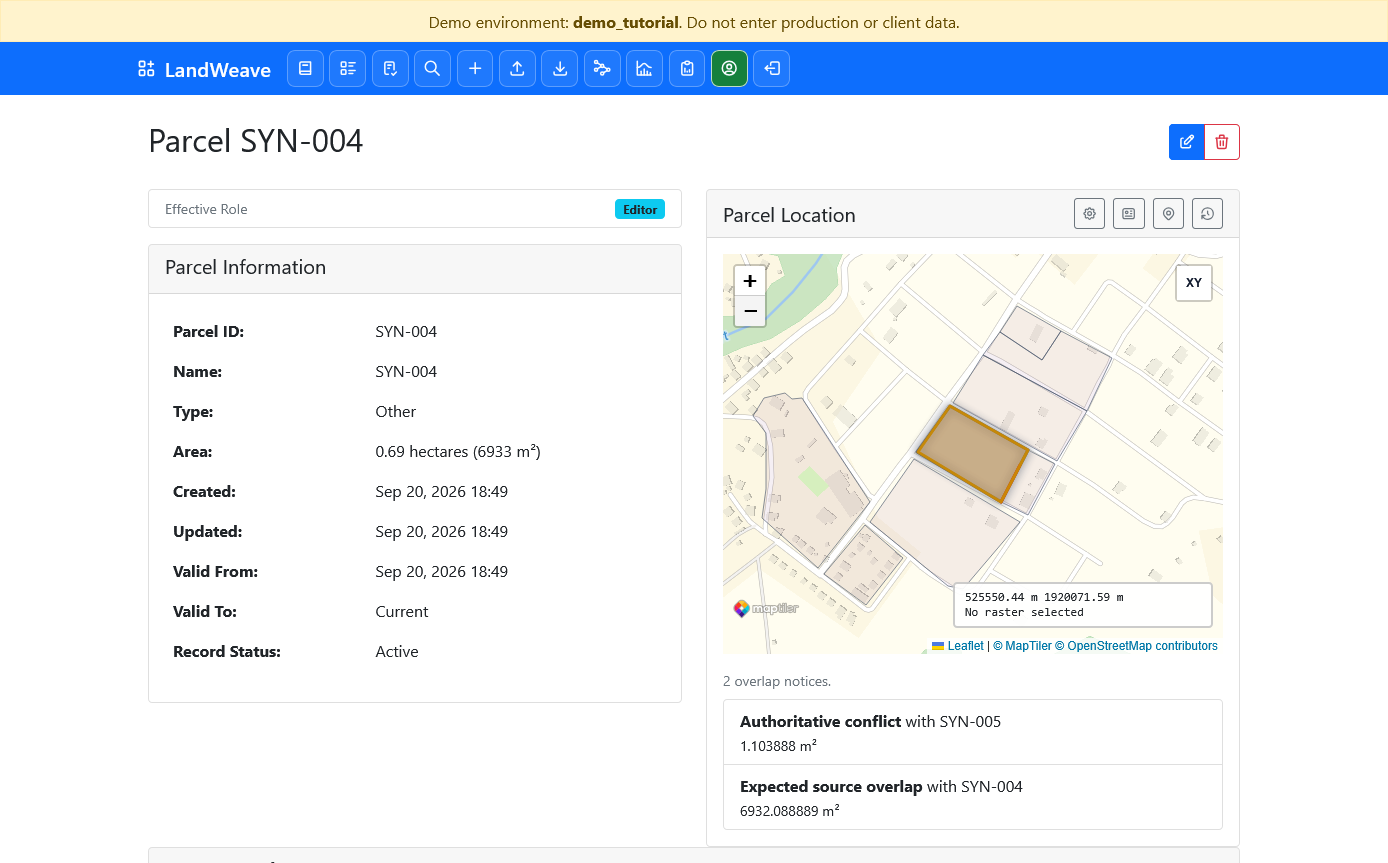
The map first fits closely around the selected parcel. Select Show surrounding parcels (the map-pin button above the map), then select the map's minus button twice to zoom out. You can now compare the selected parcel with nearby parcels. The surrounding-parcels button remains highlighted while this view is active.
6. Make and save a draft change
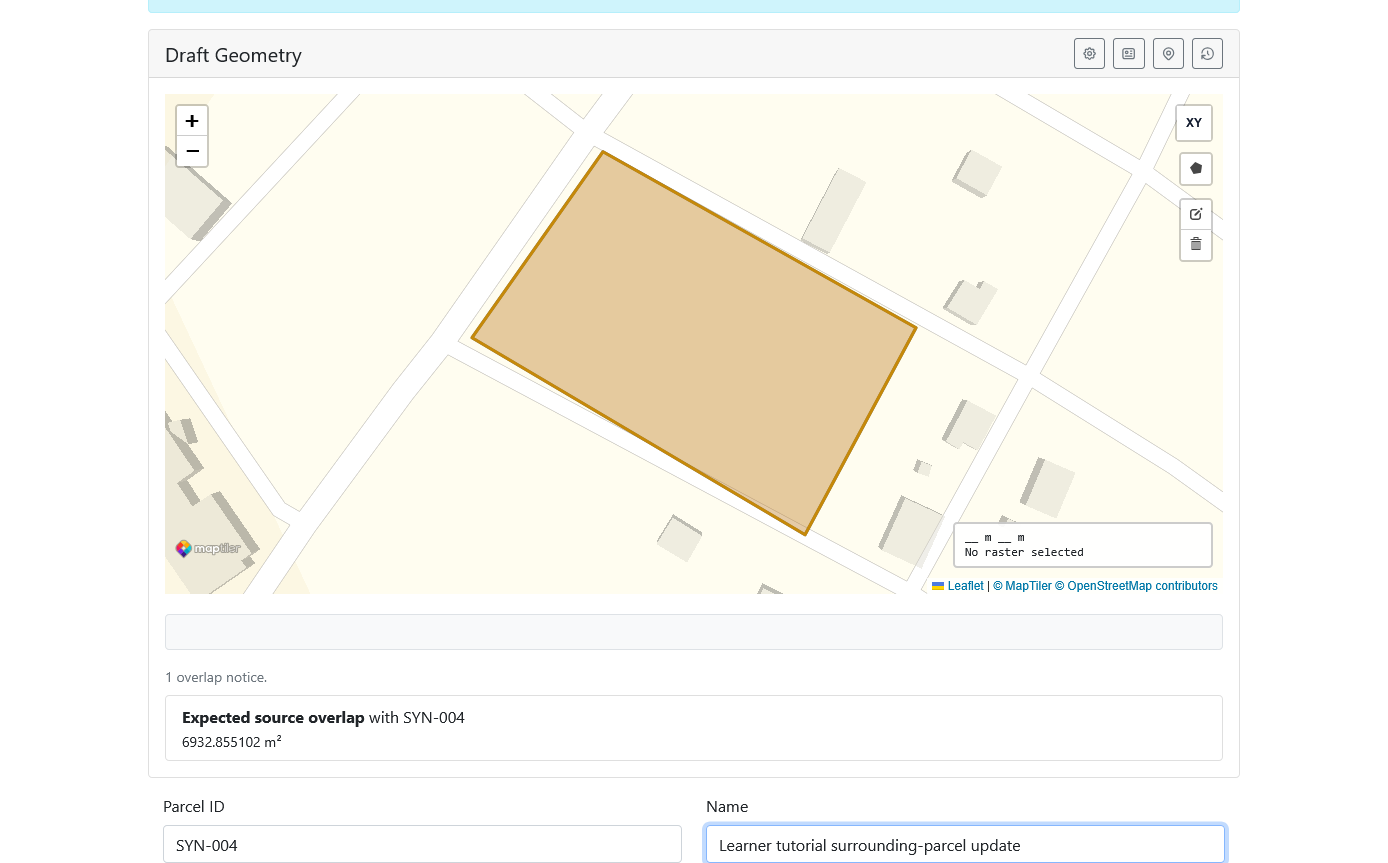
Change only what the exercise asks you to change. In this example, the parcel name becomes Learner tutorial surrounding-parcel update. Select Save Draft. Saving a draft does not change the official parcel.
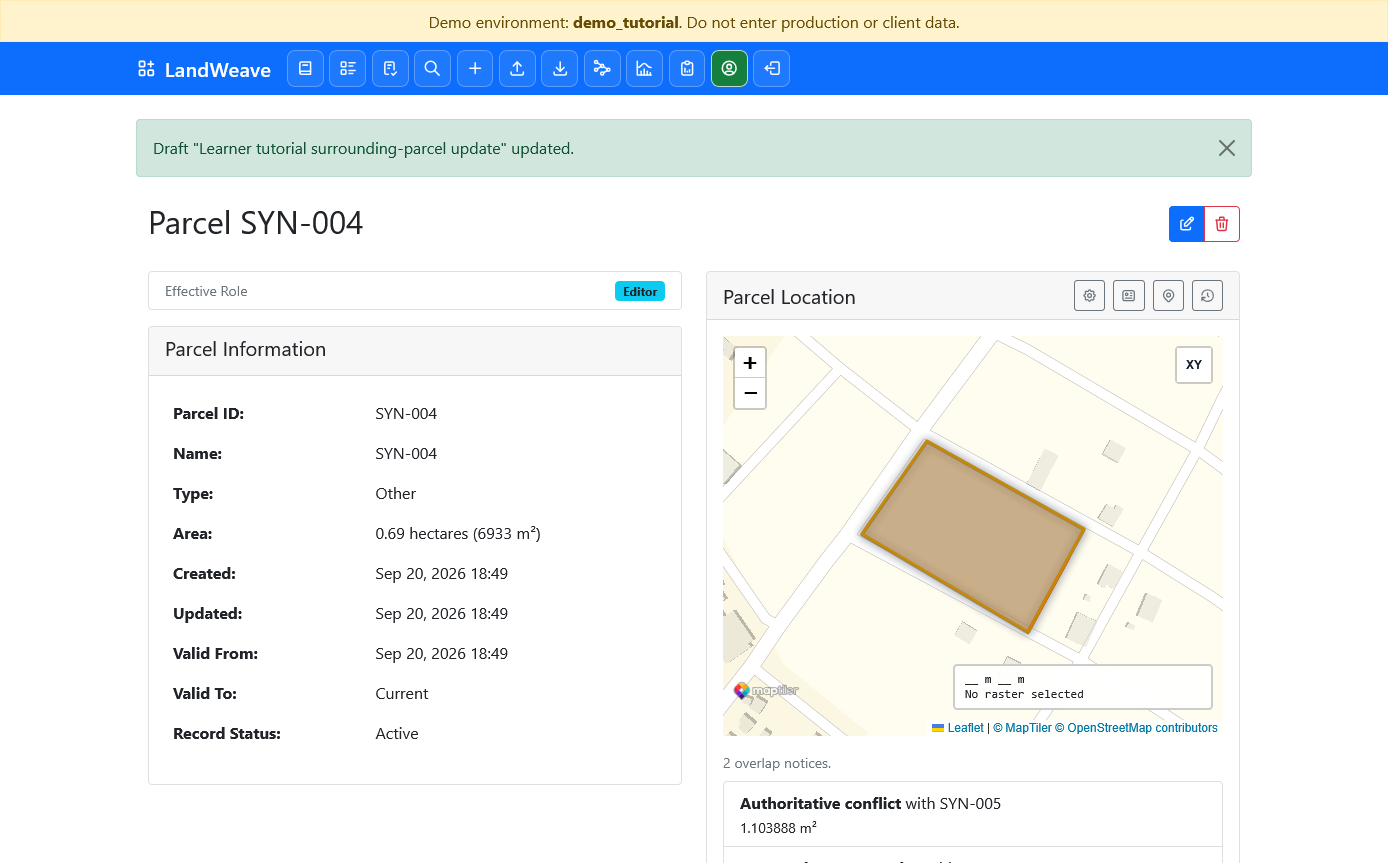
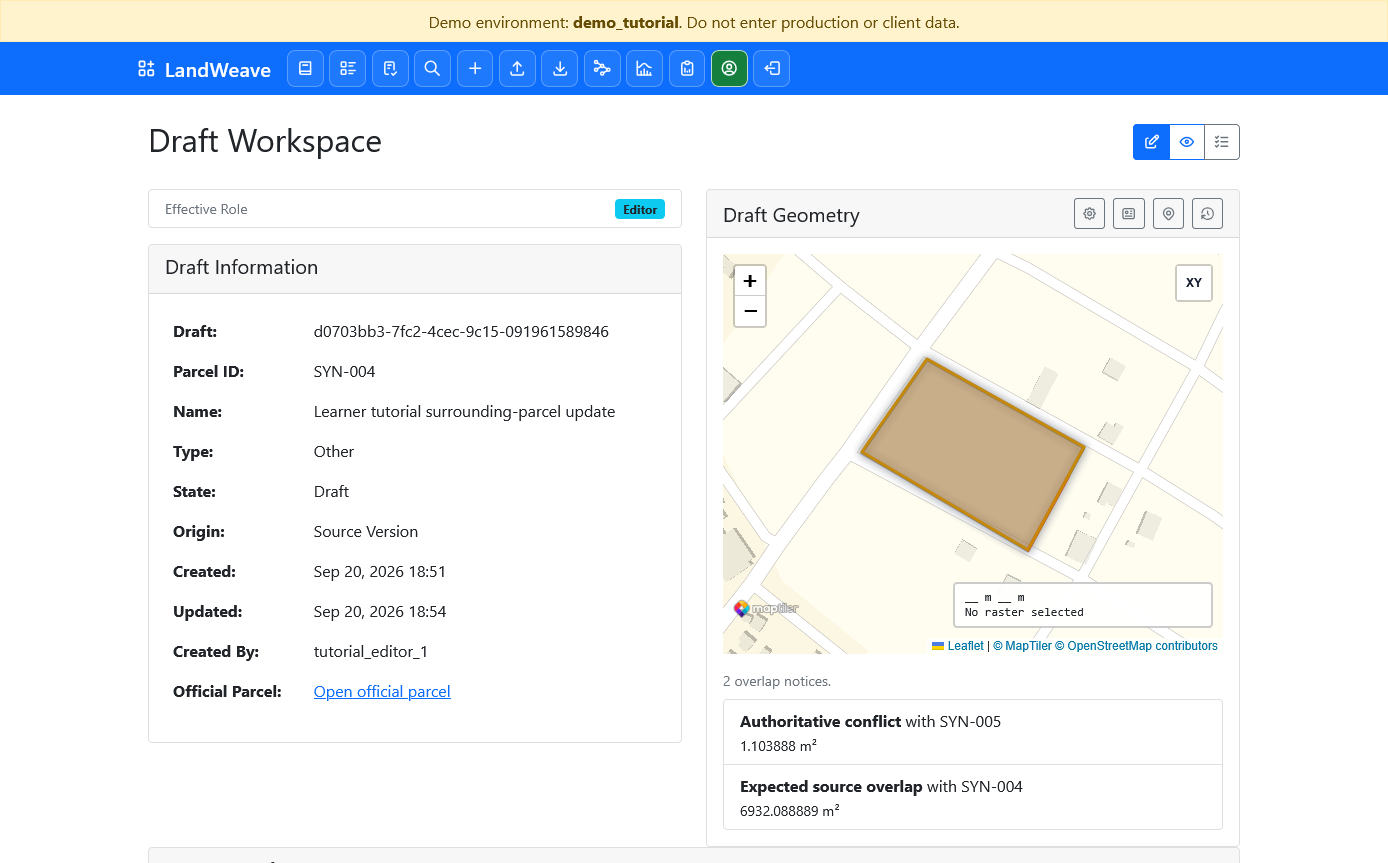
The parcel page now shows a green confirmation and a Current Draft section. Open the draft.
Check the proposed information and parcel shape. The yellow Expected source overlap notice is normal because the draft began from the current parcel; you do not need to correct it. Select Submit Draft and confirm the action.
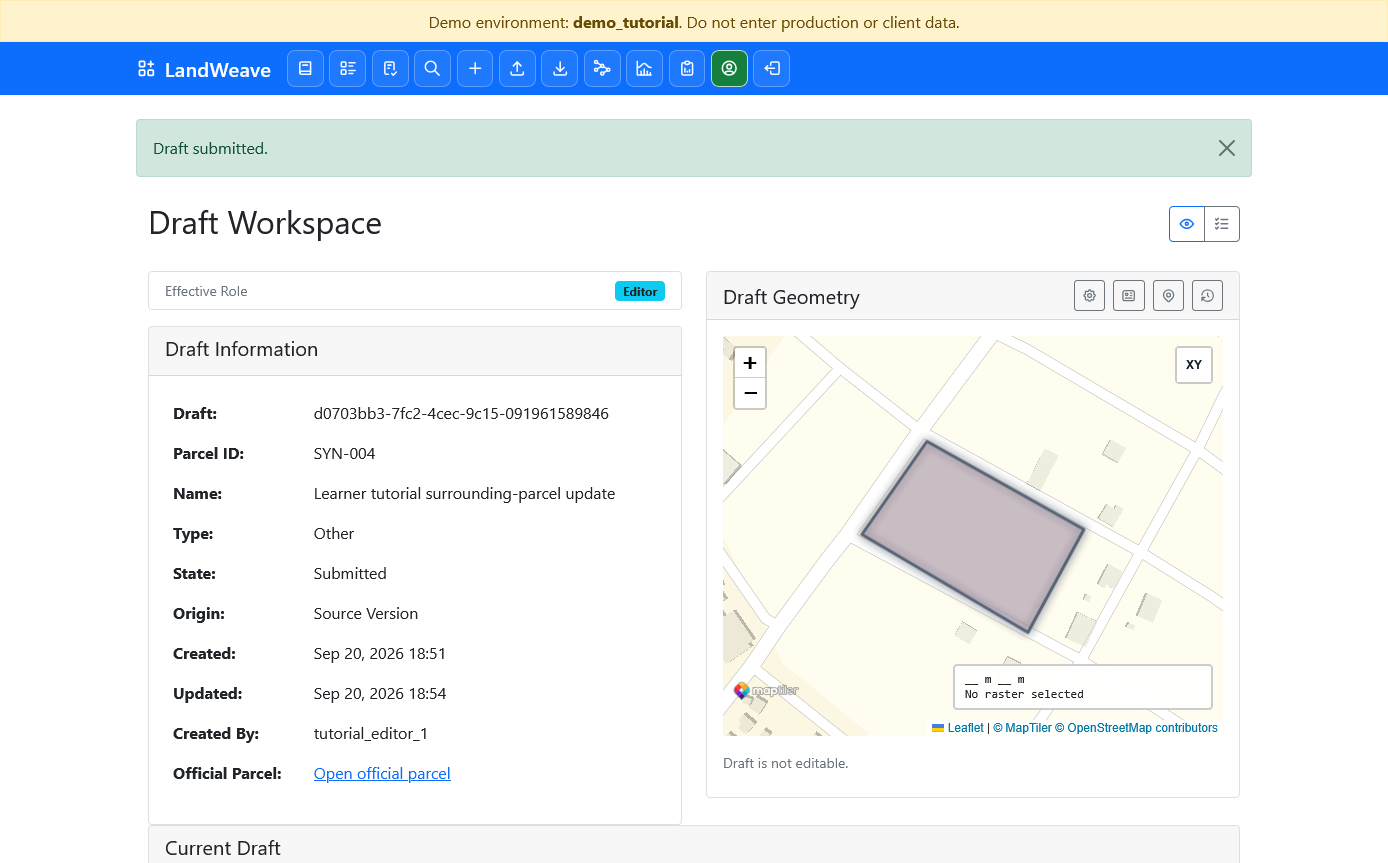
The state changes from Draft to Submitted. The Editor has finished this stage.
7. Review the submitted draft
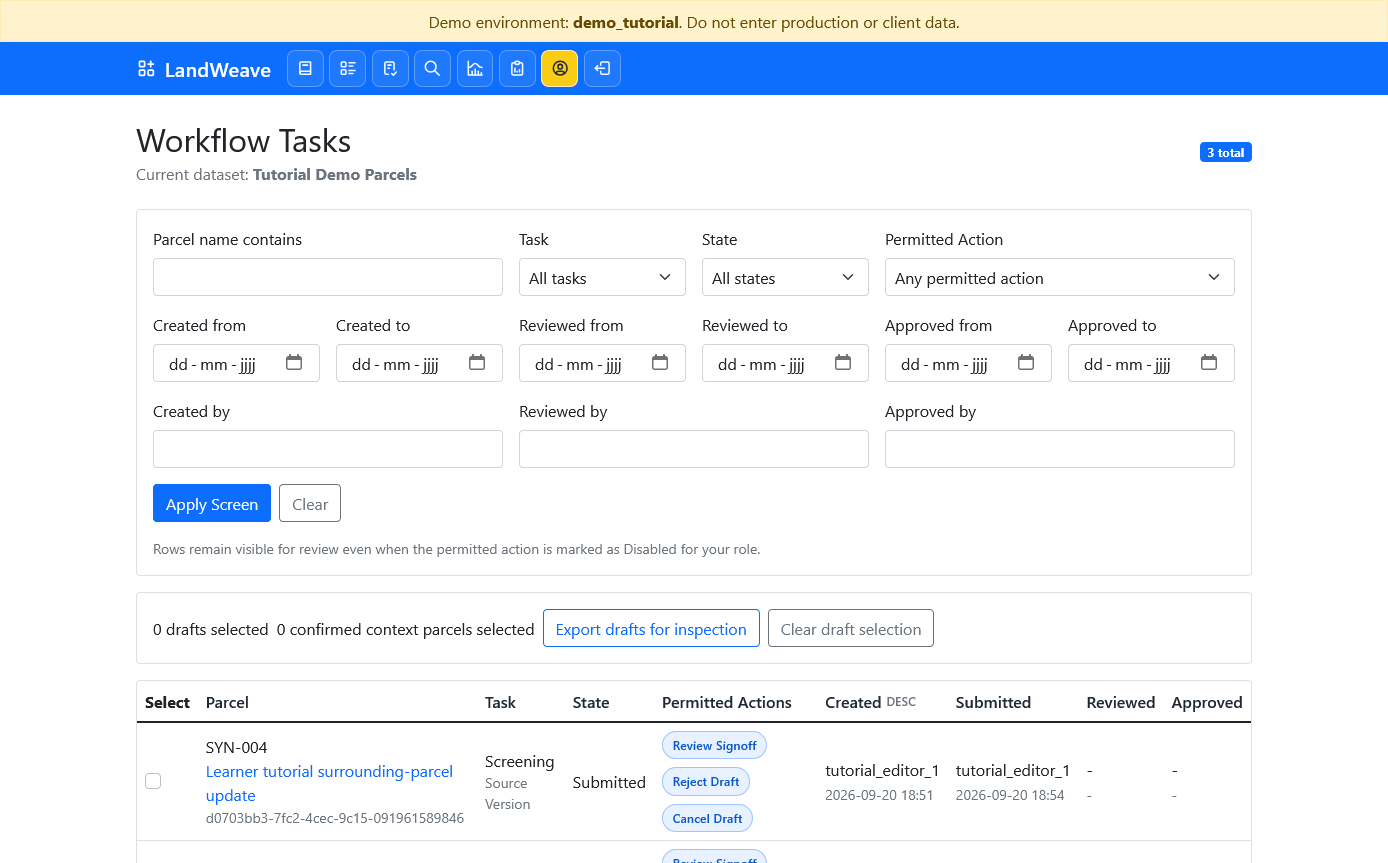
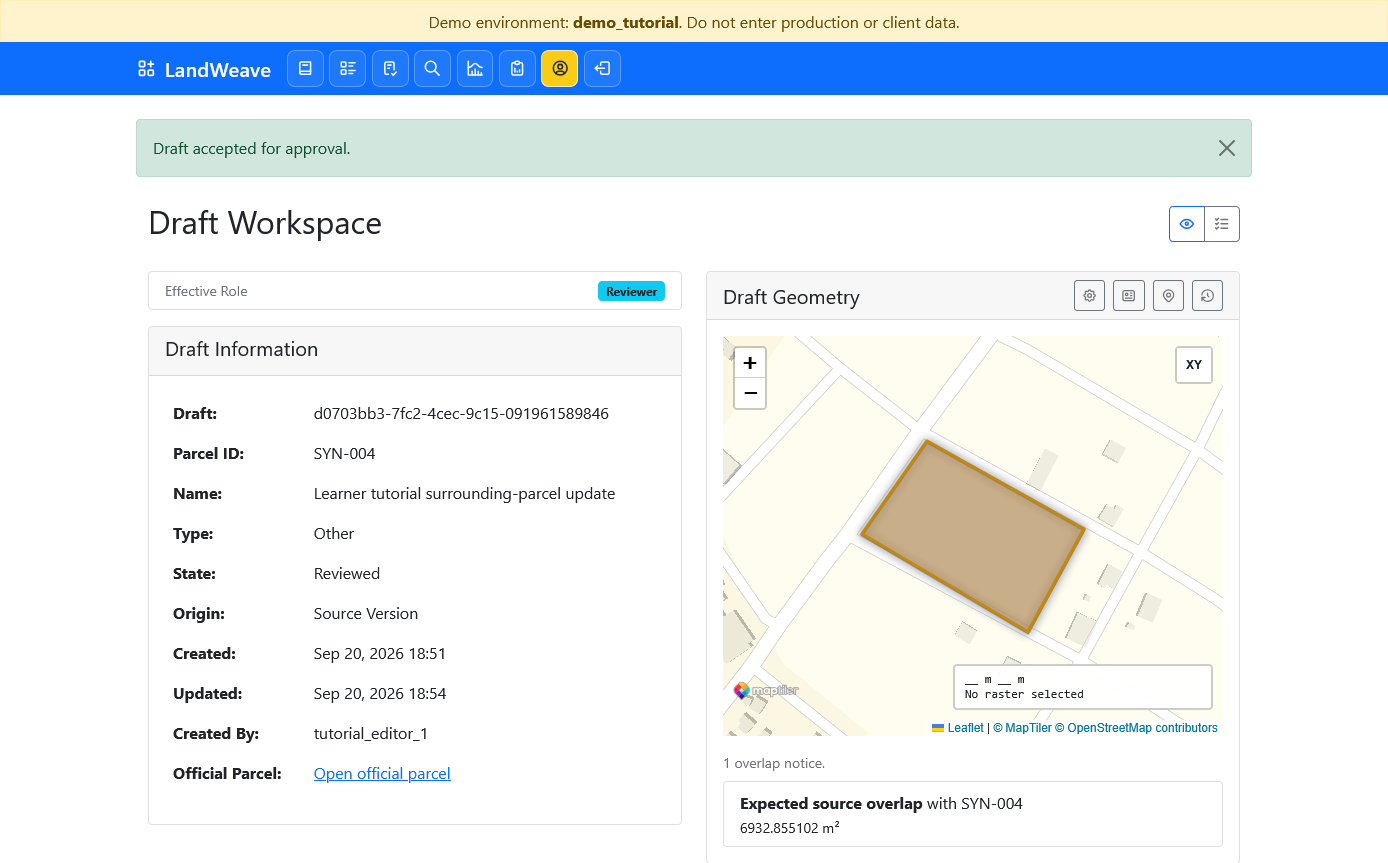
Move to the Reviewer tab and open Workflow Tasks. Find the parcel name used in the exercise. Check that its state is Submitted and that Review Signoff is available.
Open the task. Check the proposed information and geometry, then select Review Signoff and confirm. If the proposal is incorrect, follow the trainer's instruction to reject it with a reason instead.
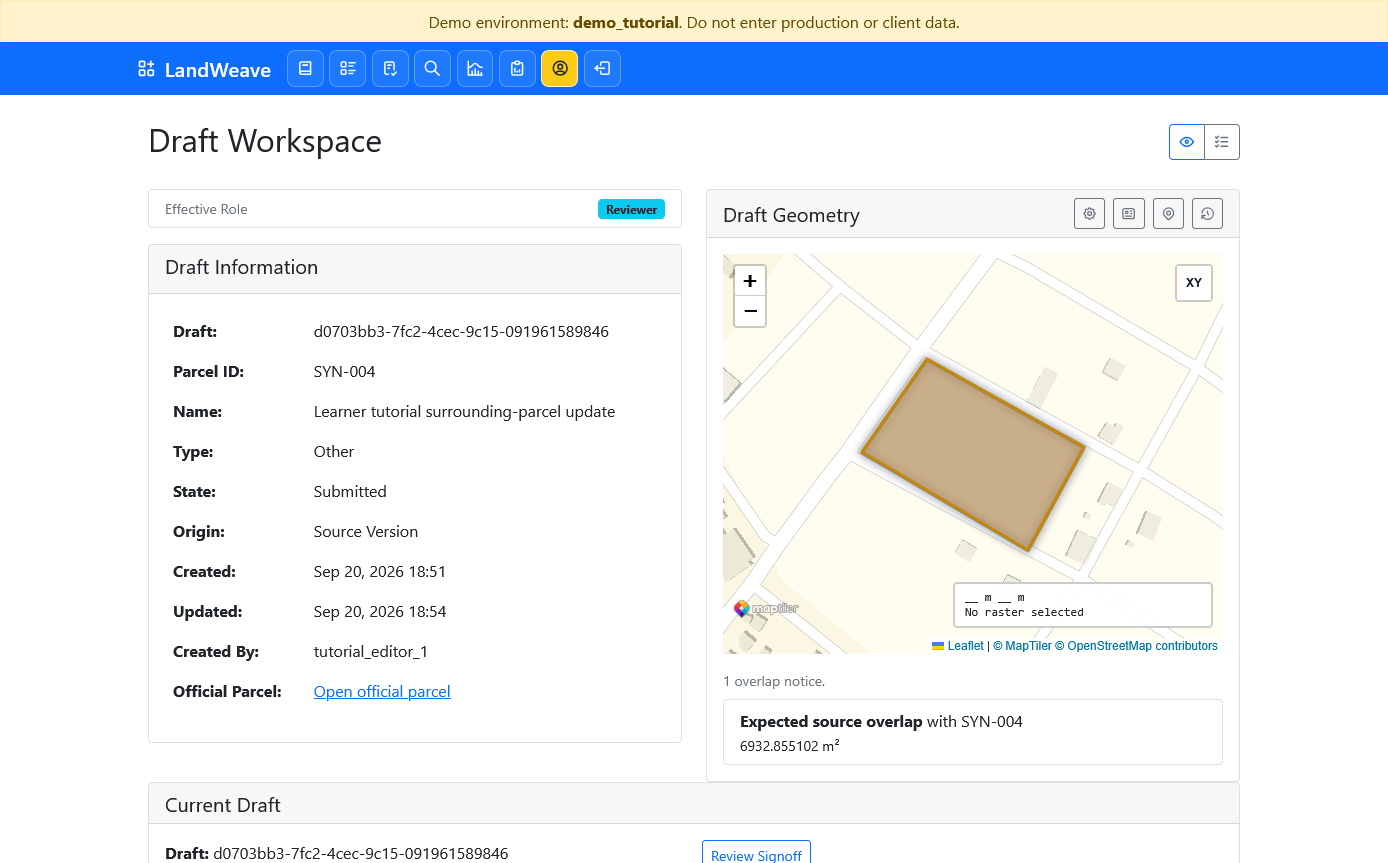
The state changes to Reviewed. The Reviewer has not made the parcel official; final approval remains separate.
8. Give final approval
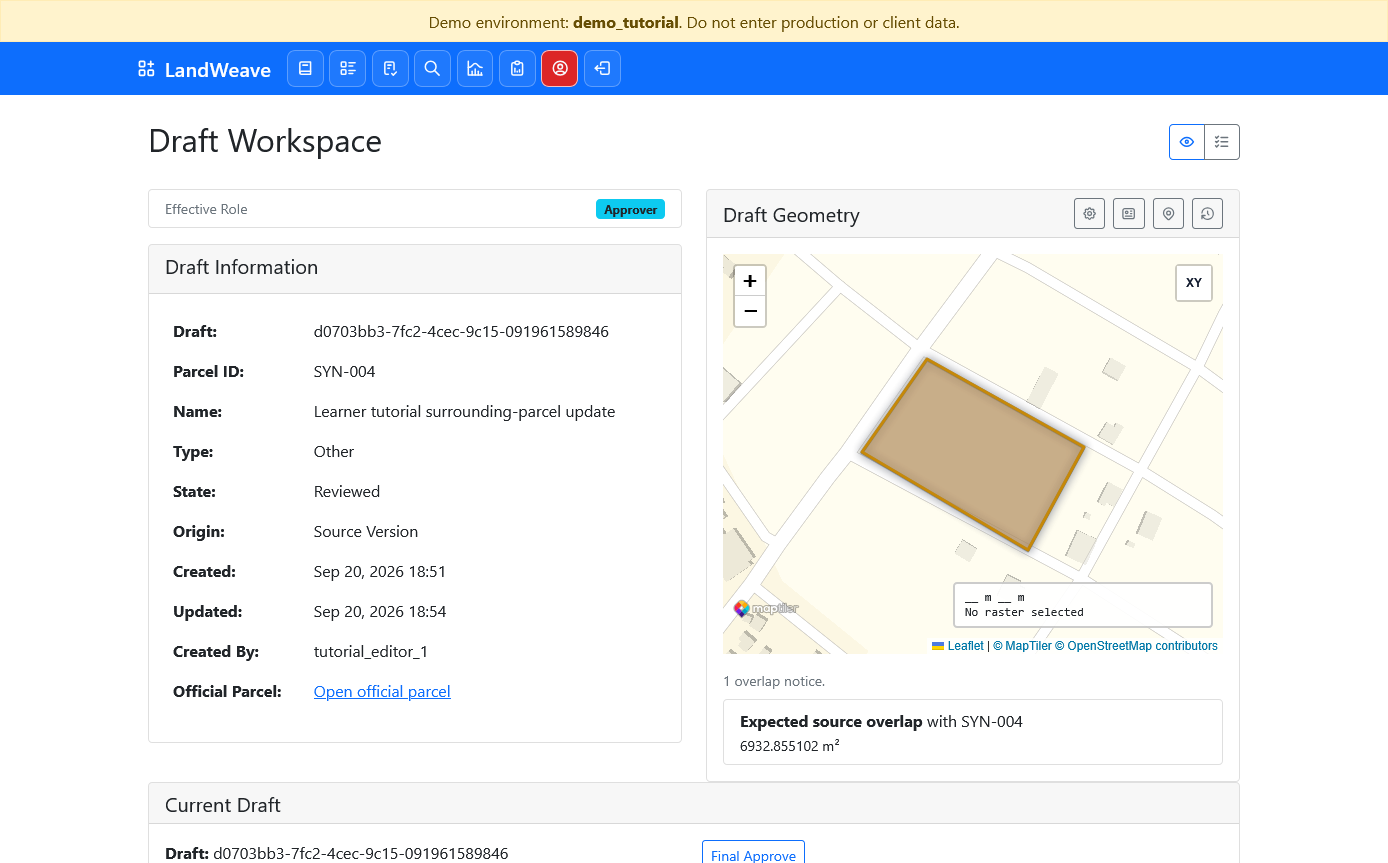
Move to the Approver tab and open the same task. Check that Effective Role is Approver and the state is Reviewed. Inspect the proposal, then select Final Approve and confirm.
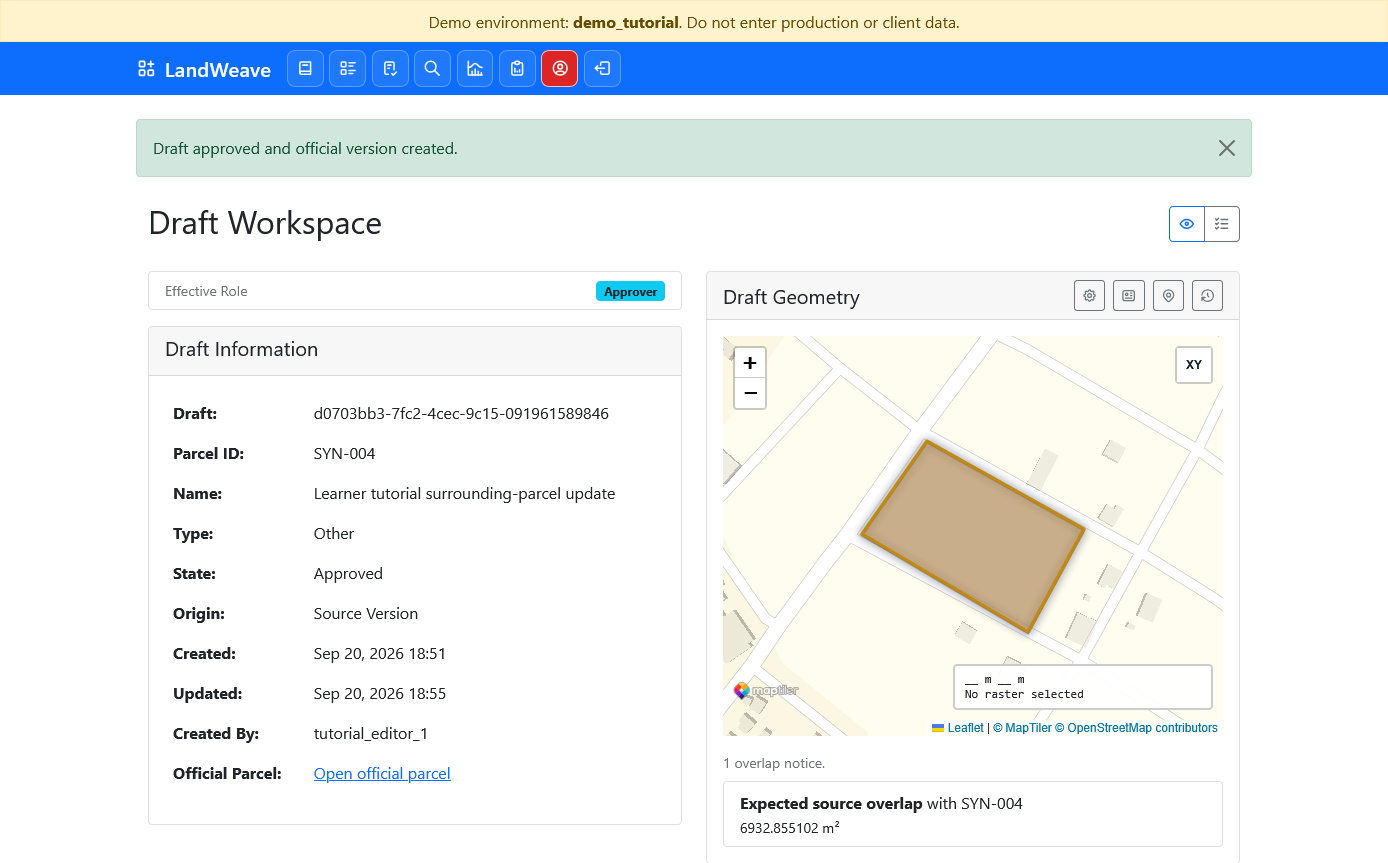
The draft state changes to Approved. The approved change is now a new official parcel version, while the earlier versions remain available in the history.
9. Verify the result as Viewer
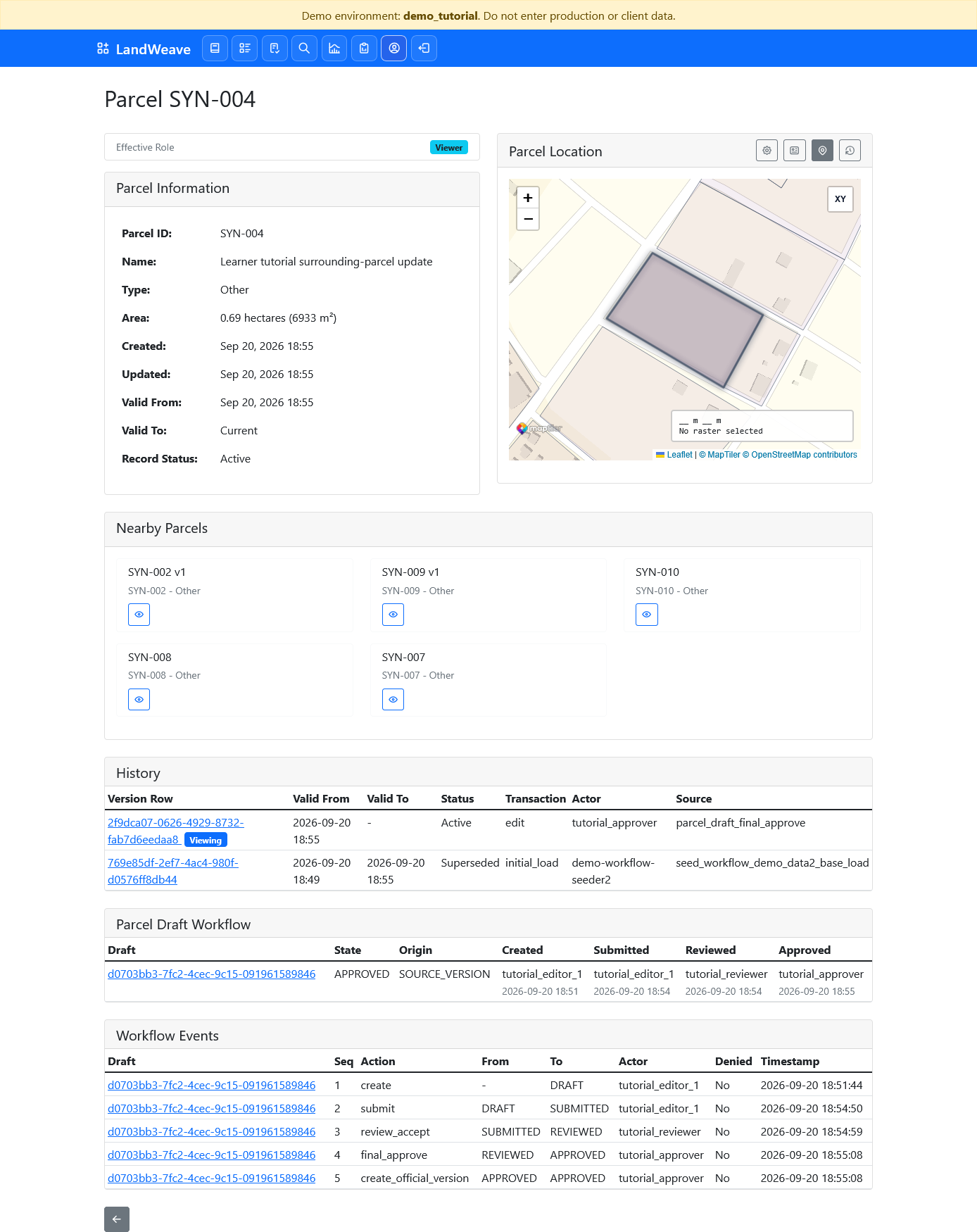
Return to the Viewer tab and open the current SYN-004 parcel. The approved
name is now official. The page also shows the earlier versions, the approved
draft, and the ordered workflow events for Editor, Reviewer, and Approver.
The exercise is complete. Do not repeat Launch merely to reopen a closed tab: each launch counts against the ticket limit.
If something does not work
- No install button: use Firefox for desktop and reopen the demo login page.
- Firefox downloads the launcher file: open it from Firefox's Downloads list, then confirm that you want to add the LandWeave Demo Launcher.
- Ticket rejected: check every character and the hyphen. The ticket may have expired or reached its launch limit; ask the trainer for another.
- Wrong role: check the coloured profile icon and the Effective Role badge before acting.
- Role tab signed out: do not enter another role's credentials. Ask the trainer whether to relaunch with a valid ticket.
For a compact explanation of the launcher, see Demo multi-role tour. For workflow rules, see ParcelDraft Workflow.
Next tutorial
Continue with Introducing LandWeave to practise navigation, parcel search, map/list selection, and reading parcel history. Use your existing Viewer tab or an ordinary Viewer username/password login.